

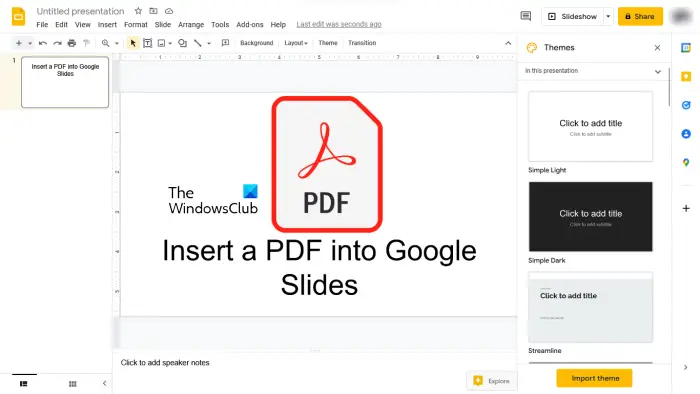
Google Slides is a free on-line presentation creating device developed by Google. Right now, it’s broadly utilized by customers and has change into different to Microsoft PowerPoint. To make use of Google Slides, you must have a Google account and an energetic web connection. There are various methods by which you may make a presentation efficient and extra informative. Considered one of these strategies is so as to add a PDF file to your presentation. In his article, we are going to see methods to insert a PDF into Google Slides.
Google Slides has many benefits, like:
- All of your knowledge can be saved mechanically on the cloud.
- You may create new and edit present shows in Google Slides by signing into your account.
- You may obtain Google Slides presentation in Microsoft PowerPoint supported format.
Easy methods to insert a PDF into Google Slides
Now, let’s discuss methods to insert a PDF into Google Slides. We’ll describe right here the next two strategies:
- By changing a PDF file into photos.
- By including a hyperlink to your PDF file.
Under, we’ve described each of those strategies intimately.
1] Insert a PDF into Google Slides by changing it into photos
In the event you click on on the Insert menu on the Google Slides Menu Bar, you’ll not see an choice to insert a PDF into Google Slides. Subsequently, you possibly can insert a PDF by changing it into photos. This methodology is beneficial if you wish to insert some particular pages into your Google Slides presentation. If you wish to insert an entire PDF file into Google Slides, inserting it as a hyperlink can be simpler. We’ll discuss this later on this article.
The next steps will information you on methods to insert a PDF into Google Slides by changing it into photos.
- Convert your PDF file into photos.
- Open Google Slides and check in utilizing your Google account.
- Go to “Insert > Picture > Add from laptop.”
- Choose the picture out of your laptop and click on Open.
First, convert your PDF file into photos. For this, you should utilize free on-line PDF to JPG converter instruments or software program. There are various on-line instruments obtainable that allow you to convert your PDF recordsdata into photos. Completely different instruments have completely different limitations within the free plan. Subsequently, you will have to attempt a couple of PDF to picture converter device relying on the variety of pages your PDF file has. After conversion, save the photographs in JPG or PNG picture codecs.

Now, open Google Slides in your net browser. Open your presentation. After that, choose the slide into which you wish to insert a selected web page of your PDF and go to “Insert > Picture > Add from laptop.” Now, choose the picture that represents that web page of your PDF file and click on Open.

After importing the picture, you possibly can resize it. To take action, choose the picture and drag from the corners. You can even crop the picture by double-clicking on it.
2] Insert a PDF into Google Slides by including a hyperlink
If you wish to add the whole PDF file, you can’t achieve this by utilizing the tactic described above. For this, you need to add a hyperlink to your PDF file in Google Slides. The steps to do that are as follows:
- Open your net browser and go to Google Drive.
- Add your PDF file to Google Drive.
- Create a hyperlink to your PDF file.
- Copy that hyperlink and paste it into Google Slides.
Let’s see these steps intimately.

First, open your net browser and go to Google Drive. Register by utilizing your Google account. After that, go to “New > File add.” Choose the PDF file out of your laptop and click on Open.

You will notice the uploaded PDF file in Google Drive. Or you possibly can search for a similar by typing its title within the Search Bar. The subsequent step is to create a hyperlink to your PDF file. To take action, right-click in your PDF file and choose Get hyperlink. Now, click on copy hyperlink. After that, the hyperlink to your PDF file uploaded to Google Drive can be copied to the clipboard.

Now, open Google Slides in your net browser after which open your presentation. After that, choose the slide into which you wish to insert the PDF file. Now, you possibly can add a hyperlink to a textual content or a picture. If you wish to add a hyperlink to a picture, add the picture to Google Slides. You may add the primary web page of your PDF file as a picture to Google Slides. After including the picture, choose it and go to “Insert > Hyperlink” or just press the Ctrl + Ok keys. The Ctrl + Ok is the shortcut to hyperlink. Now, paste the copied hyperlink within the required discipline and click on Apply. If you wish to add the hyperlink to the textual content, choose the textual content, then press Ctrl + Ok keys, and paste the copied hyperlink within the required discipline click on Apply.
You will have efficiently linked the PDF file to the picture or textual content in Google Slides. Now, whenever you click on on the hyperlinked textual content or picture within the slideshow, Google Slides will open the PDF file in a brand new tab in your net browser.
That’s it, you’ve gotten efficiently inserted a PDF into your Google Slides presentation.
Learn: Easy methods to add audio to Google Slides.
Are you able to import PDF into Google Slides?
In the event you click on on the Insert menu, you’ll not discover an possibility that permits you to import a PDF into Google Slides immediately. Subsequently, if you wish to import a PDF into Google Slides, you need to convert the whole PDF file into photos. After that, you possibly can insert the picture of a selected web page of the PDF file into Google Slides. This methodology works solely if you wish to import a selected web page into your Google Slides presentation.
If you wish to import the whole PDF file into Google Slides, you are able to do so by making a hyperlink to your PDF file. After creating the hyperlink to your PDF file, you possibly can add that hyperlink to your Google Slides presentation.
We have now described each of those strategies step-by-step above on this article.
How do I insert a PDF into slides?
You may insert a PDF into Google Slides by changing it into photos or by creating the hyperlink to the identical. The latter methodology is straightforward and allows you to insert the whole PDF file into Google Slides. In the event you use the latter methodology, you possibly can hyperlink a textual content or a picture in Google Slides to your PDF file. On this article, we’ve coated each of those strategies intimately.
I hope this helps.
Learn subsequent: Easy methods to insert Google Slides into Google Docs.